Skip to content

Elevating IT Infrastructure: The Integration of MDM

Have you ever purchased a security system or saw one? If not, let’s paint a picture. Just imagine that you have purchased a state-of-the-art home security system. It has all the bells and whistles, cameras, motion sensors, smart locks, and whatnot. But now you face the challenge of integrating it with your existing household setup. You need it to work smoothly with your current security protocols, connect effortlessly to your home network, and make sure it doesn’t disrupt your daily routine.

Do you get the idea? Similarly, in the mobile-driven corporate world, simply acquiring a Mobile Device Management (MDM) solution is insufficient. The challenge lies in seamlessly integrating it into your existing IT infrastructure to maintain operational integrity and security.

Integration of MDM
Integrate MDM Solutions Into Your Existing IT Infrastructure
This blog discusses the strategic considerations for seamlessly integrating MDM solutions, which promise streamlined management and better security without causing disruptions.

Challenges of Managing IT Infrastructure Without MDM
When did you last try to juggle multiple responsibilities without a proper system? It could be organizing a family vacation, where you had to book flights, hotels, and activities while managing work deadlines and household chores. The stress and inefficiency can be overwhelming, right?

The same applies to businesses managing hundreds or thousands of mobile devices without a centralized solution.

1. Security and Compliance Risks
Security is a top priority for any industry. Without a centralized MDM solution, ensuring all devices are consistently updated with the latest security patches is like trying to herd cats. Each device has its schedule, and users often delay updates, either out of convenience or simply because of forgetfulness. This lack of uniformity leaves significant gaps in your security.

Inconsistent security updates can lead to major headaches. What if a new malware strain is spreading rapidly? IT teams must manually scramble to update each device without an MDM solution—a slow and error-prone process. In the meantime, the organization remains exposed to potential breaches, risking sensitive data and regulatory non-compliance. It’s like locking some doors in your house while leaving others wide open, hoping intruders won’t find the unlocked ones.

2. Operational Inefficiencies
Operational inefficiencies are another major issue. Manual device management has substantial operational overhead and resource consumption. IT staff spend countless hours on mundane tasks like setting up devices, pushing updates, and troubleshooting issues, which could be better spent on strategic initiatives. This wastes valuable resources and stifles innovation and growth.

3. User Experience and Support
A diverse device environment can be a support nightmare. Different devices and operating systems require specialized knowledge and tools, making it challenging to provide consistent support. Consistent access to corporate resources can be critical without a unified management solution. Some users might have access to their emails and files, while others struggle with intermittent connectivity and permission issues. This inconsistency hampers productivity and can lead to dissatisfaction among employees, as they feel unsupported and hindered in their work.

Strategic Considerations for Integrating MDM into IT Infrastructure
Careful planning and strategic considerations are essential when integrating an MDM solution into your IT infrastructure to ensure a smooth and effective deployment. Here, we look into some key aspects, such as compatibility and deployment models, providing insights to help you navigate the integration process.

1. Compatibility
Before implementing an MDM solution, verifying its compatibility with your current IT infrastructure is important. This includes assessing compatibility with servers, network configurations, and security protocols. This compatibility check helps:

Avoid Potential Conflicts: Ensuring the MDM solution works seamlessly with existing components and prevents disruptions during and after integration.
Facilitate Smooth Integration: Compatibility ensures the MDM software can be deployed efficiently, reducing the risk of integration issues that could lead to downtime or compromised security.
Maintain Security Standards: Verifying compatibility ensures the MDM solution aligns with your existing security measures, maintaining the integrity of your overall security posture.
2. Deployment Models
Selecting the appropriate deployment model for your MDM solution is vital. The choice will depend on your industry’s specific needs, resources, and strategic goals. Here are the three primary deployment models:

a) Cloud-based
Benefits

Quick Deployment: Cloud-based MDM solutions can be deployed rapidly, allowing for faster implementation.
Scalability: Cloud solutions offer the flexibility to scale up or down based on business needs, accommodating growth or changes in device management requirements.
Reduces Upfront Costs: Cloud models typically involve lower initial investments, as there is no need for extensive hardware purchases or infrastructure upgrades.
Challenges

Data Privacy Concerns: Storing data in the cloud raises potential privacy issues, especially for businesses dealing with sensitive information.
Dependency on Internet Connectivity: Cloud solutions rely on stable Internet connections, and any disruption in server connectivity can affect access and functionality.
Best Practices

Conduct Thorough Risk Assessments: Evaluate potential risks associated with data storage and access to the cloud.
Ensure Compliance with Data Protection Regulations: Verify that the cloud provider complies with relevant data protection laws and standards.
Establish Clear SLAs with the Cloud Provider: Define service level agreements that outline performance expectations, support, and security measures.
b) On-Premise
Security Considerations

Greater Control Over Data: On-premise solutions provide direct control over data storage and security measures, which is critical for businesses with stringent data protection requirements.
Customizable Security Measures: Businesses can customize security protocols and configurations to meet their specific needs.
Resource Requirements

Significant Investment: Implementing an on-premise solution requires substantial hardware, software, and ongoing maintenance investment.
Dedicated Resources: Ensure sufficient resources are allocated to manage and support the on-premise MDM infrastructure.
Best Practices

Regularly Update and Patch the MDM Software: Keep the MDM software updated to protect against vulnerabilities and ensure optimal performance.
Maintain Backup and Disaster Recovery Plans: Implement comprehensive backup and recovery strategies to safeguard data and ensure business continuity.
Allocate Dedicated Resources for Management and Support: Ensure skilled personnel can manage and support the MDM infrastructure.
c) Virtual Private Cloud (VPC)
Flexibility and Control
Combines Cloud and On-Premise Benefits: VPCs offer the scalability and flexibility of cloud solutions while providing control similar to on-premise deployments.
Customizable Environment: Businesses can configure the VPC to meet specific needs and security requirements.
Benefits of Integrating MDM into IT Infrastructure
Integrating MDM into your IT infrastructure offers numerous advantages that enhance security, efficiency, and user experience. Here are the key benefits:

1. Streamlined Device Enrollment and Configuration
MDM solutions simplify enrolling and configuring new devices, ensuring they meet corporate standards from the start. This reduces the time and effort required to set up devices and ensures consistency across the industry.

2. Strengthened Security
MDM provides centralized control over security policies, ensuring consistent updates and reducing vulnerabilities across all devices. Features like remote-wipe and encryption further safeguard corporate data, protecting against breaches and unauthorized access.

3. Increased Productivity
By consolidating management tasks into a single platform, MDM software reduces the complexity and overhead of device management. Automated processes streamline operations and free up IT resources, allowing them to focus on strategic initiatives that drive business growth.

4. Improved Regulatory Compliance
MDM solutions help businesses comply with industry regulations by enforcing security policies and maintaining audit trails. This ensures all devices adhere to compliance standards, reducing the risk of fines and legal issues.

5. Cost Savings
MDM solutions can lead to significant cost savings by automating device management and reducing the need for manual interventions. They also minimize the resources required for IT support and reduce downtime.

Seamlessly Integrate your Existing IT Infrastructure with Scalefusion
Scalefusion offers flexible deployment options to fit your business needs, whether you prefer cloud, on-premise, or VPC solutions. This versatility ensures you can seamlessly integrate Scalefusion’s MDM capabilities into your existing IT infrastructure without disrupting your current operations.


About Scalefusion
Scalefusion’s company DNA is built on the foundation of providing world-class customer service and making endpoint management simple and effortless for businesses globally. We prioritize the needs and feedback of our customers, making sure that they are at the forefront of all decision-making processes. We are dedicated to providing comprehensive customer support services, and place emphasis on customer-centric thinking throughout the organization.

About Version 2 Limited
Version 2 Digital is one of the most dynamic IT companies in Asia. The company distributes a wide range of IT products across various areas including cyber security, cloud, data protection, end points, infrastructures, system monitoring, storage, networking, business productivity and communication products.

Through an extensive network of channels, point of sales, resellers, and partnership companies, Version 2 offers quality products and services which are highly acclaimed in the market. Its customers cover a wide spectrum which include Global 1000 enterprises, regional listed companies, different vertical industries, public utilities, Government, a vast number of successful SMEs, and consumers in various Asian cities.

Zero-touch Deployment for Macs with Scalefusion UEM

Have you ever bought a new gadget, only to find it packed with lengthy setup steps? Now suppose the same happening with every device in your company. That’s where zero-touch deployment steps in—removing the bother for IT admins and employees.

Zero-touch deployment for mac
What is Zero-touch Deployment for Mac?
Zero-touch deployment allows new Mac devices to be shipped directly to employees, fully configured and ready to go right out of the box. IT admins no longer need to spend hours configuring security settings, installing apps, or personalizing devices. Zero-touch deployment is a smarter way for businesses to manage their growing fleets of devices while keeping things simple for everyone involved.

The result? Happy employees, smoother operations, and an easier life for IT.

What is Zero-touch Deployment for Mac?
Zero-touch deployment on Mac is a method that enables IT teams to remotely configure and deploy Mac devices without the need for physical handling. When a MacBook is unboxed by an employee, it is already fully set up with the necessary applications, configurations, and security protocols in place.

This approach eliminates the need for IT to manually set up each device, as the entire process is automated. As a result, new hires or remote workers can start using their Mac devices immediately, enhancing productivity from day one. Zero-touch deployment is an efficient solution for businesses looking to streamline Mac device management while ensuring robust security and compliance measures are maintained.

The Key Benefits of Zero-touch: Simplifying Mac Deployments
1. Faster Deployments
Zero-touch deployment eliminates manual setup, allowing IT teams to configure and ship devices like Macs directly to users. For large-scale deployments, this drastically reduces time spent on device setup, enabling quick rollouts for new hires or department-wide refreshes.

2. Simplified Mac Enterprise Deployment
With Apple zero-touch deployment, devices are pre-configured with apps, settings, and security protocols, making it ideal for Mac enterprise deployment. IT teams can focus on other tasks instead of repetitive configurations.

3. Improved Security
Since all devices are set up with predetermined security policies, there’s no risk of users misconfiguring or skipping vital security steps. This ensures company-wide compliance and peace of mind.

4. Cost Efficiency
By automating the deployment process, companies can save significantly on labor and resources. IT teams can manage devices remotely, reducing the need for on-site staff, especially in remote work scenarios.

5. Consistency Across Devices
For businesses wondering, “How does IT benefit organizations with large-scale deployments?” Zero-touch ensures every device follows the same standard setup, resulting in uniformity across all Macs, regardless of location.

How to Implement Zero-touch Deployment for Mac with Scalefusion UEM
Step-by-Step Guide
Step 1: Log in to Scalefusion

Access your Scalefusion Dashboard.
Go to Getting Started > Apple Setup > ADE/DEP.
Step 2: Download ADE Public Key

Click the Download Public Key button and save the ADETokenKey.pem file.
Step 3: Set Up Scalefusion as an MDM Server

Log in to https://business.apple.com or https://school.apple.com/.
Navigate to Preferences (under your profile name) and go to MDM Servers.
Click Add to create a new MDM server.
Name the MDM server (e.g., “Scalefusion”).
Upload the Scalefusion ADETokenKey.pem file you downloaded.
Click Save and then download the Server Token.
Read more about: What is Apple Business Manager & What is Apple School Manager

Step 4: Upload the Server Token

Return to the Scalefusion Dashboard.
In the ADE/DEP section, upload the Server Token file you downloaded from ABM/ASM.
Click Next to complete the setup.
Step 5: Assign Devices to Scalefusion

In ABM/ASM, go to Device Enrollment and select Manage Devices.
Assign devices by their Serial Numbers,Order Numbers, or upload a CSV file with this information.
Choose Scalefusion as the MDM server for these devices.
Step 6: Sync Devices in Scalefusion

Return to the ADE/DEP section of Scalefusion.
Click Sync Now to sync the assigned devices. Automatic syncing may take up to 6 hours.
You can now see the synced devices listed under the Total Devices section.
Read more about: What is Apple DEP

Step 7: Start Enrollment

Unbox new devices or reset existing devices.
For new devices, go through the initial setup (language, Wi-Fi).
For existing iOS devices, navigate to Settings > General > Reset > Reset All Content & Settings.
For macOS, use CMD + R to reinstall macOS.
Step 8: Complete Enrollment

After initial setup, the devices will show a Remote Management screen.
Enter the required credentials (email, OTP) for User Authenticated Enrollment, if enabled.
Follow the remaining steps to complete the enrollment.
Step 9: Check Enrollment Status

Verify the enrollment status of your devices in the Scalefusion Dashboard under Devices. The devices will be managed automatically under the chosen configuration.
This setup enables zero-touch deployment, allowing ADE devices to automatically enroll into the Apple MDM as soon as they are set up or reset.

Wrapping Up: The Future of Mac Enterprise Deployment
Zero-touch deployment is more than just a convenience—it’s a transformation in how businesses manage their devices. As organizations scale, particularly those deploying a large number of Macs, the simplicity and efficiency of automating the setup process become invaluable.

With Scalefusion UEM, IT teams can streamline operations, ensure security, and maintain consistency across all devices, no matter where they are. Whether you’re deploying 10 or 1,000 Macs, this solution ensures your teams are always ready to work, right out of the box.

About Scalefusion
Scalefusion’s company DNA is built on the foundation of providing world-class customer service and making endpoint management simple and effortless for businesses globally. We prioritize the needs and feedback of our customers, making sure that they are at the forefront of all decision-making processes. We are dedicated to providing comprehensive customer support services, and place emphasis on customer-centric thinking throughout the organization.

About Version 2 Limited
Version 2 Digital is one of the most dynamic IT companies in Asia. The company distributes a wide range of IT products across various areas including cyber security, cloud, data protection, end points, infrastructures, system monitoring, storage, networking, business productivity and communication products.

Through an extensive network of channels, point of sales, resellers, and partnership companies, Version 2 offers quality products and services which are highly acclaimed in the market. Its customers cover a wide spectrum which include Global 1000 enterprises, regional listed companies, different vertical industries, public utilities, Government, a vast number of successful SMEs, and consumers in various Asian cities.
How Unified Endpoint Management Supports Zero Trust Architecture

“Never trust, always verify.” It’s more than just a catchy phrase, it’s the core principle behind the Zero Trust security model.

But where threats constantly evolve, how can businesses ensure they’re truly following this mandate? Are traditional security methods enough to keep up with the complexities of digital frameworks? How do you ensure that every device, user, and access point in your network is secure?

Unified endpoint management (UEM) in Zero trust security
Implementing Zero-Trust with UEM
From mobile phones and laptops to IoT devices, each endpoint represents a potential vulnerability. As businesses adopt the Zero Trust model, Unified Endpoint Management (UEM) appears to be a key solution. It’s not just about managing devices, it’s about continuously verifying them, controlling access, and monitoring activity to prevent unauthorized access at every turn.

Let’s find out how UEM enforces the principle of “never trust, always verify” across all endpoints, ensuring that your network remains secure in a world where trust is a luxury no one can afford.

Understanding Zero Trust Architecture
Digital threats are rapidly evolving in sophistication, so relying on outdated security models that trust users and devices by default simply won’t cut it. Zero Trust flips this concept on its head, demanding rigorous checks at every level of access and interaction.

So, what exactly does Zero Trust entail? It’s about ensuring that every access request—whether from inside or outside the network—undergoes continuous verification. There’s no inherent trust based on a user’s location or device, instead, every request is treated with suspicion until proven otherwise. This means that even if a device or user is inside the corporate network, they’re not automatically granted access to all resources. Instead, access is tightly controlled and continuously validated.

Key principles of Zero Trust include:

Least Privilege Access: Users and devices are given the minimum level of access necessary to perform their functions. This reduces the risk of unauthorized access and limits the potential damage in case of a breach.
Micro-Segmentation: The network is divided into smaller, isolated segments, so even if one segment is compromised, the threat is contained and doesn’t spread across the entire network.
Continuous Monitoring: Regularly checking the health and behavior of users and devices helps detect anomalies and real-time potential threats, ensuring that any suspicious activity is addressed immediately.
With people accessing corporate resources from different locations and devices, the traditional security perimeter has all but disappeared. This shift requires a new approach to security.

Unified Endpoint Management: Beyond Device Management
UEM is an all-in-one toolkit that goes beyond the basic device management we’re used to. It’s about harmonizing and securing every device, application, and data within your business. While traditional device management might have focused solely on deploying and maintaining hardware, UEM takes a broader approach, integrating multiple aspects of IT management into a single platform.

UEM is a comprehensive solution that manages and regulates a diverse range of devices and applications. It unifies the management of mobile devices, desktops, applications, VR devices, wearables, rugged devices, digital screens, and IoT devices, all within a single platform. It’s designed to streamline the oversight of various endpoints, from smartphones and tablets to laptops and IoT devices.

But UEM doesn’t stop there; it also encompasses application management, identity management, and data security, providing a holistic view of your entire IT ecosystem.

The evolution of UEM is a testament to its growing importance. It began as Mobile Device Management (MDM), focusing on mobile devices and their security. As the IT sector evolved, so did MDM, transforming into UEM to address the complexities of managing a wider range of endpoints, ensuring that every endpoint remains secure, compliant, and optimized, regardless of where or how it’s used.

UEM and Zero Trust: The Perfect Synergy
When it comes to integrating security and management, UEM and Zero Trust are the duo that complement each other seamlessly. Many CXOs now recognize that pairing UEM with Zero Trust is essential for safeguarding their companies. Here’s how UEM supports and enhances the Zero Trust model, making it a powerful ally:

1. Enforcing the Principle of Least Privilege
Zero Trust is all about ensuring that users and devices have only the minimum level of access based on their level of responsibility. UEM plays an important role by meticulously managing and controlling access across all devices. It ensures that permissions are granted based on role, necessity, and context, so users get just enough access to do their job. This granular control minimizes potential risks and enforces the Zero Trust principle of least privilege effectively.

2. Continuous Monitoring and Threat Detection
In the Zero Trust model, constant vigilance is key. UEM’s robust monitoring capabilities align perfectly with this need. It continuously tracks user behavior and device health, looking out for any anomalies that could indicate a threat. This real-time oversight ensures that any suspicious activity is detected and addressed promptly, keeping your network secure from emerging threats.

Scalefusion UEM further enhances this approach by enabling overall centralized visibility, allowing organizations to monitor all endpoints from a single platform. This centralization streamlines threat detection and response, making it easier to identify potential vulnerabilities and take swift action to mitigate risks.

3. Identity and Access Management (IAM) Integration
Effective security requires tight integration between identity management and access controls. UEM enhances Zero Trust by working seamlessly with IAM solutions. This integration ensures that access permissions are managed consistently and securely across all endpoints, enforcing Zero Trust principles by validating every access request against strict identity and access controls. Solutions like Scalefusion OneIdP play a key role here by focusing on conditional access management, ensuring that users are granted access based on real-time conditions and policies, further strengthening the security framework.

4. Multi-Factor Authentication (MFA)
MFA is a critical component of Zero Trust, adding an extra layer of security to user authentication. UEM solutions enable the implementation of MFA, requiring users to provide multiple forms of verification —such as something they know (a password), something they have (a smartphone or security token), and something they are (biometric data like a fingerprint or facial recognition). By integrating MFA with UEM, these solutions streamline the enforcement of MFA policies, ensuring compliance and security across all endpoints.

5. Single Sign-On (SSO)
SSO simplifies user access by allowing individuals to log in to multiple applications with a single set of credentials, streamlining the login process and maximizing productivity.

Enterprises increasingly recognize the value of SSO for enhancing multi-application usage and centralizing user activity monitoring, which facilitates tracking resource utilization and identifying behavioral patterns. UEM solutions support SSO capabilities, improving user experience while reducing the risk of password-related vulnerabilities. This approach aligns seamlessly with Zero Trust principles by ensuring that access is managed efficiently and securely.

6. Automated Response and Remediation
One of the key challenges in maintaining the Zero Trust environment is quickly responding to potential threats and vulnerabilities. UEM enhances Zero Trust by automating response and remediation processes. For instance, when a device exhibits suspicious behavior or fails to meet compliance standards, UEM can automatically take remediation actions, such as isolating the device, blocking access, or initiating a security scan. This automation supports Zero Trust’s requirement for continuous monitoring and quick responses, ensuring potential threats are managed effectively.

Future Outlook: The Role of Automation in UEM and Zero Trust
1. Automation in Zero Trust Enforcement
Enforcing Zero Trust policies manually is increasingly impractical, especially for large-scale enterprises with numerous endpoints. Automation helps streamline and enhance the enforcement of Zero Trust principles. It allows for real-time compliance checks, automatic threat detection, and seamless policy application. By taking over routine tasks and monitoring, automation ensures that security measures are consistently applied, reducing human error and accelerating response times to potential threats.

2. Emerging Trends
Several key trends are shaping the future of UEM and Zero Trust. The integration of Internet of Things (IoT) devices is one such trend, as these devices become more prevalent in business environments. UEM solutions are evolving to include advanced capabilities for managing and securing a wide range of connected devices, such as smart thermostats in offices and connected medical devices in healthcare, ensuring only authorized access and continuous monitoring for compliance and anomalies.

Another notable trend is the shift toward edge computing. As data processing moves closer to the source of data generation, securing these edge environments is important. UEM will increasingly focus on extending Zero Trust principles to decentralized endpoints, ensuring comprehensive protection even in the most distributed IT environment.

UEM as the Backbone of the Zero Trust Architecture
UEM supports Zero Trust by ensuring continuous verification of every device, enforcing strict access controls, and maintaining constant monitoring. From automating threat responses to integrating identity management, UEM enhances the effectiveness of Zero Trust principles. By managing and securing all endpoints, Scalefusion UEM helps create a strong fortress around your digital environment, making it harder for threats to breach and move within your network.

Now is the time to assess your current security posture. It’s worth exploring how UEM in Zero Trust security can be a critical component of your strategy. With the right approach, you can walk through modern threats and complexities and secure your digital environment.

Scalefusion UEM, integrated with IAM, can help achieve this synergy seamlessly. By combining robust endpoint management with identity and access controls, Scalefusion enables you to implement Zero Trust principles efficiently, ensuring that every endpoint is continuously secured and compliant.

About Scalefusion
Scalefusion’s company DNA is built on the foundation of providing world-class customer service and making endpoint management simple and effortless for businesses globally. We prioritize the needs and feedback of our customers, making sure that they are at the forefront of all decision-making processes. We are dedicated to providing comprehensive customer support services, and place emphasis on customer-centric thinking throughout the organization.

About Version 2 Limited
Version 2 Digital is one of the most dynamic IT companies in Asia. The company distributes a wide range of IT products across various areas including cyber security, cloud, data protection, end points, infrastructures, system monitoring, storage, networking, business productivity and communication products.

Through an extensive network of channels, point of sales, resellers, and partnership companies, Version 2 offers quality products and services which are highly acclaimed in the market. Its customers cover a wide spectrum which include Global 1000 enterprises, regional listed companies, different vertical industries, public utilities, Government, a vast number of successful SMEs, and consumers in various Asian cities.
How to Remotely Wipe a Mac Device with Scalefusion UEM

Ever had an employee leave unexpectedly, and you needed to secure their device immediately? Or maybe a MacBook went missing, and you’re left worrying about the sensitive data it holds? 

Situations like these are not just headaches—they’re security risks. For IT teams managing a fleet of macOS devices, ensuring that lost, stolen, or repurposed devices are wiped clean is essential to safeguard company information.

Remote wiping is a vital tool for maintaining control over your business assets. With the right solution, like Scalefusion UEM, you can remotely wipe Mac devices instantly, ensuring that sensitive data is erased without the need for physical access to the device. 

erase MacBook remotely
Remotely Wipe Mac Devices

In this blog, we’ll dive into the importance of remote wiping, walk you through the steps to remotely wipe a macOS device using Scalefusion Mac MDM, and explore common use cases where this feature proves invaluable for businesses.

Understanding Remote Wiping on Mac: Why Is It Important?

It’s possible for an employee to leave their MacBook in a rideshare, or an ex-employee to hold onto their device a little too long. What happens to the sensitive company data on that machine? That’s where remote wiping steps in, offering an instant, secure solution.

Data security is a top priority. Losing control of a device means risking exposure to confidential information. Remote wiping allows businesses to instantly erase data from any device, no matter where it is, preventing security breaches and data leaks. It’s all about staying in control of your assets.

Whether it’s preparing a device for the next employee, protecting data on lost or stolen equipment, or managing devices at the end of their lifecycle, remote wiping ensures that your data doesn’t fall into the wrong hands. With Scalefusion UEM, you can erase MacBook remotely with ease, allowing for a seamless transition between users while maintaining security. 

Read more: Troubleshooting a Mac Device

How to Remotely Wipe a macOS Device Using Scalefusion UEM

Step 1. Access the dashboard: Log in to the Scalefusion Dashboard and navigate to the Devices section.

Scalefusion - erase MacBook remotely

Step 2. Select the device: Click on the specific macOS device to view its details.

Scalefusion - Remotely wipe mac

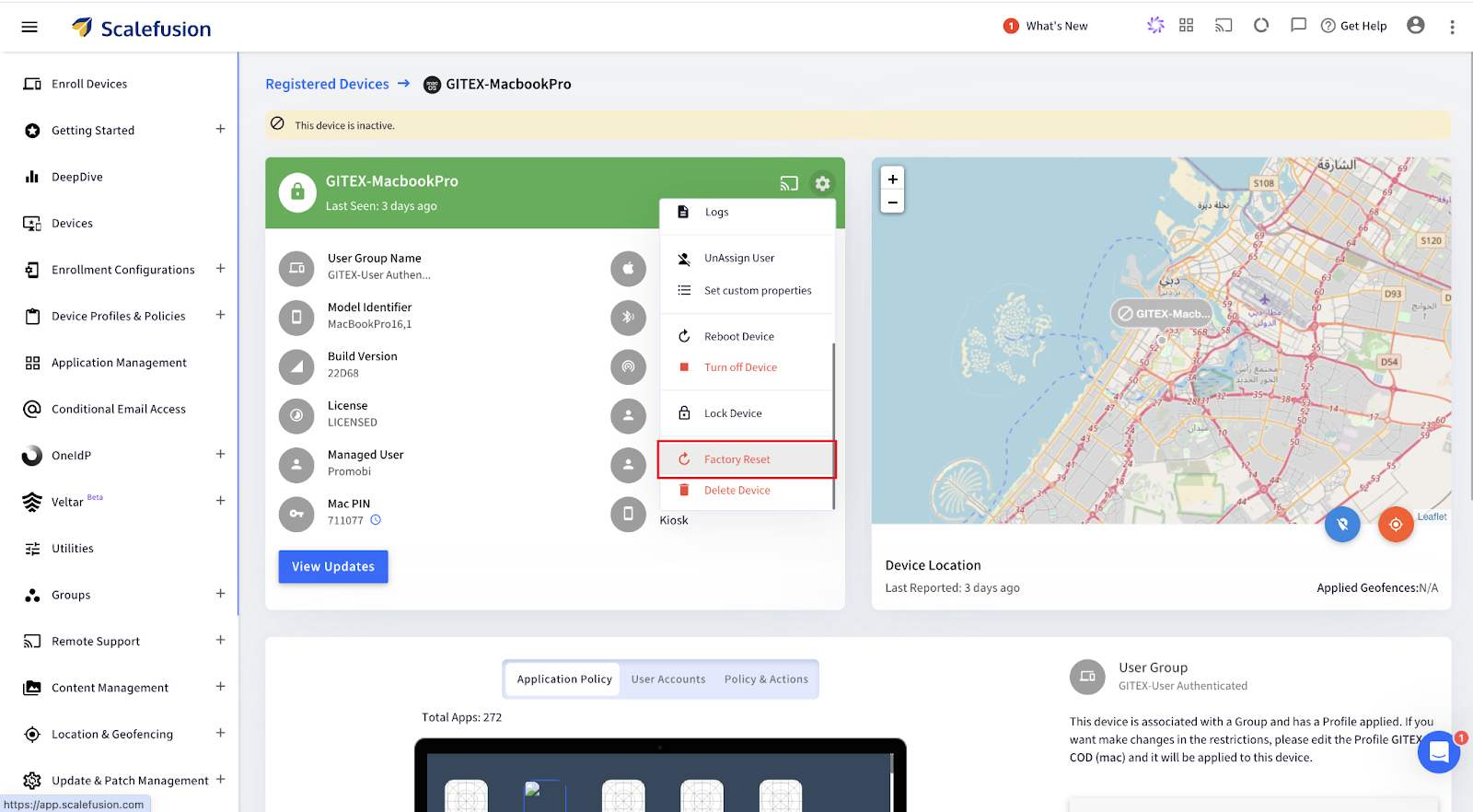
Step 3. Open Factory Reset Option: Click on the Settings icon, scroll down, and select Factory Reset from the menu options.

Scalefusion - wipe Mac remotely

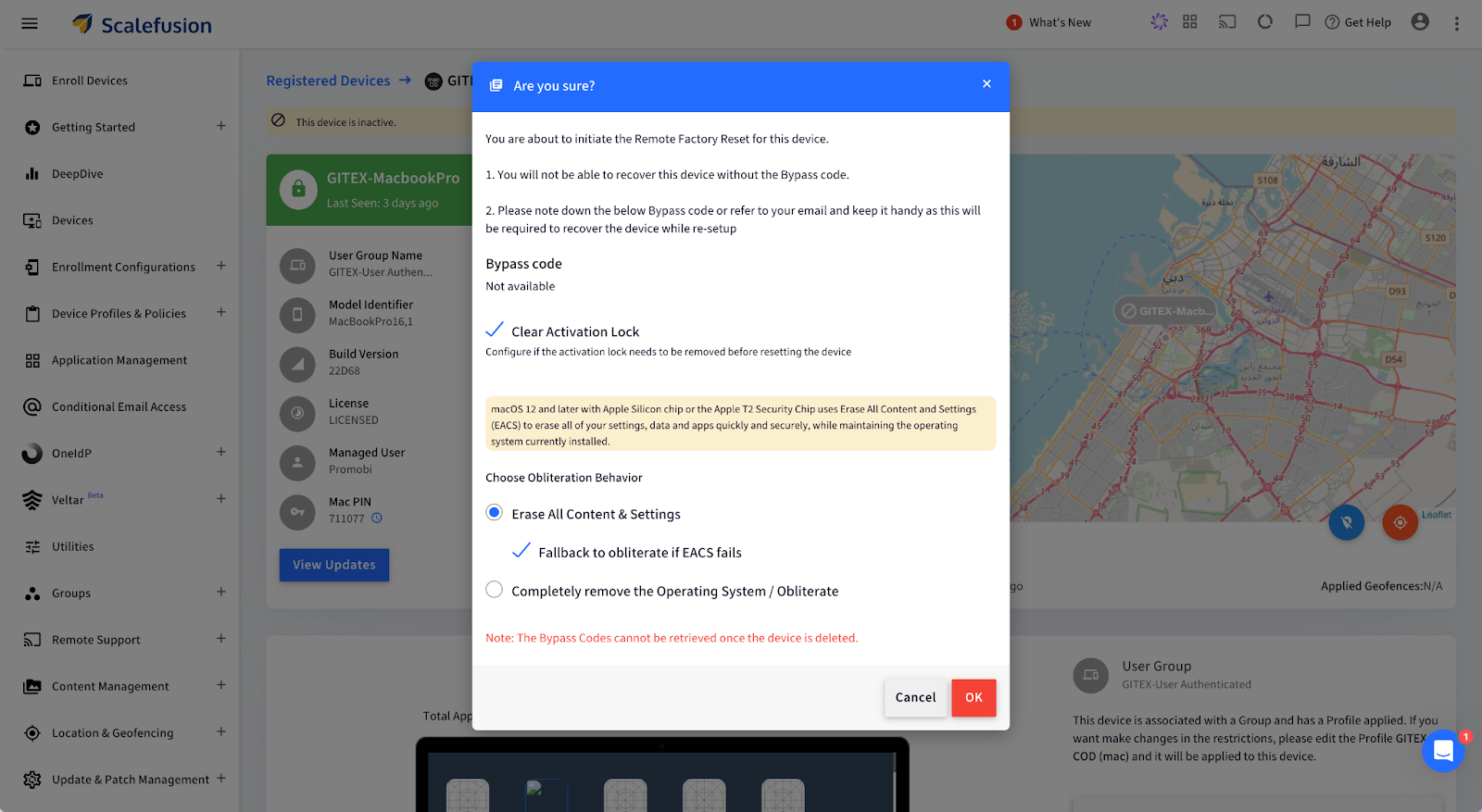
Step 4. For Apple Silicon/Intel (with T2 Security Chip):

  • Choose Obliteration Behavior: Select whether to erase all content, settings, and apps while retaining the operating system.
Scalefusion - Remotely wipe mac

Alternatively, for Intel Mac (without T2 Security Chip):

  • Configure a new Mac PIN: Enter a 6-digit PIN, then confirm by clicking OK. The PIN is also emailed to the admin.

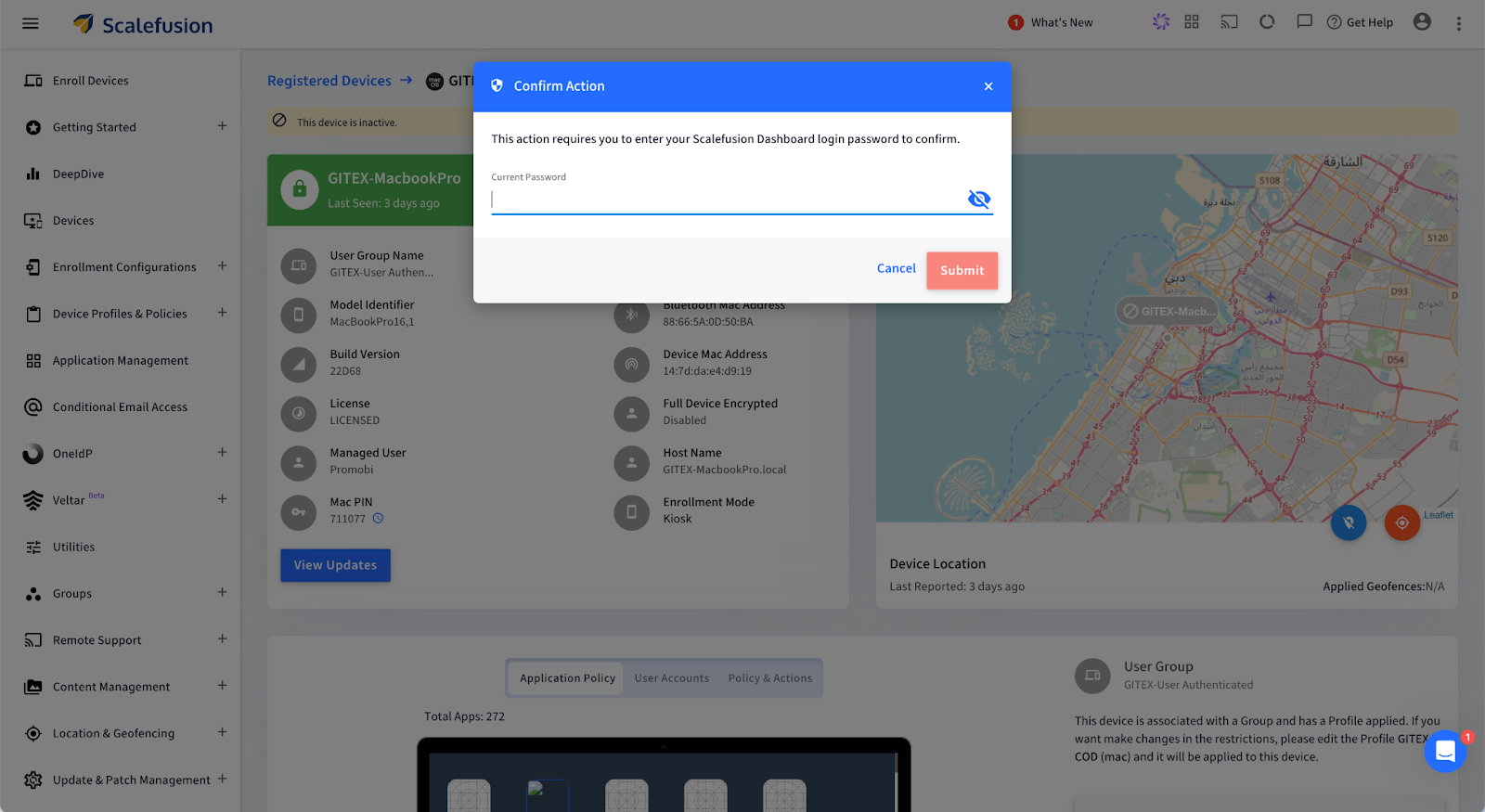
Step 5. Confirm and Submit: Enter your password and click Submit. A push notification will be sent to the device, confirming the factory reset.

Scalefusion - erase MacBook remotely

Your macOS device will now be wiped remotely and restored to factory settings.

What Happens After You Remote Wipe a Mac?

Once the remote wipe is complete, the Mac device is reset to its factory state, making it fully secure and ready for its next phase. But what does that look like at an enterprise level?

  1. Complete Data Erasure: Every piece of data, including user profiles, business applications, and sensitive information, is permanently deleted. This ensures that no traces of your company’s data remain, protecting you from potential data breaches or unauthorized access.
  2. Operating System Reset: The macOS is restored to its original, unconfigured state, essentially taking the device back to square one. This provides a clean slate, removing all previous settings, and ensuring no configurations are left that could pose a security risk.
  3. Ready for New User Setup: The device will display the macOS Setup Assistant, making it ready to be deployed for a new employee. This streamlines IT operations, enabling quick reassignment of devices without the hassle of manual resets.

Use Cases for Remote Wiping on Mac

Remote wiping proves invaluable in several business scenarios, helping IT teams maintain security and streamline device management. Here are some key use cases:

1. Employee Offboarding: When employees leave the company, ensuring their assigned Mac is cleared of any sensitive data is necessary. Remote wiping guarantees that no personal or business data remains on the device, allowing it to be securely redeployed to another team member without privacy risks or manual intervention.

2. Lost or Stolen Devices: Losing a company Mac can create a significant security threat, as it may contain confidential files, emails, or proprietary software. With Scalefusion’s remote wipe feature, IT admins can swiftly erase all data on the lost or stolen device, ensuring that sensitive information remains protected from unauthorized access.

3. Device Lifecycle Management: For businesses that frequently upgrade or redistribute devices, remote wiping helps maintain data security and device readiness. It ensures that each device is completely reset before being assigned to a new user, reducing risks associated with leftover data and simplifying the device management process.

Safeguard Your Mac Devices with Scalefusion UEM

Managing Mac devices in your business doesn’t have to be a headache. With Scalefusion UEM, you can handle everything from employee offboarding to lost devices with confidence. With just a few clicks, you can wipe your Mac remotely, ensuring that all sensitive data is securely erased and the device is ready for the next team member—all without breaking a sweat. 

No more fretting about sensitive information lingering on devices after someone leaves or when a Mac goes missing. Scalefusion’s remote wipe feature ensures that all data is gone in an instant.

About Scalefusion
Scalefusion’s company DNA is built on the foundation of providing world-class customer service and making endpoint management simple and effortless for businesses globally. We prioritize the needs and feedback of our customers, making sure that they are at the forefront of all decision-making processes. We are dedicated to providing comprehensive customer support services, and place emphasis on customer-centric thinking throughout the organization.

About Version 2 Limited
Version 2 Digital is one of the most dynamic IT companies in Asia. The company distributes a wide range of IT products across various areas including cyber security, cloud, data protection, end points, infrastructures, system monitoring, storage, networking, business productivity and communication products.

Through an extensive network of channels, point of sales, resellers, and partnership companies, Version 2 offers quality products and services which are highly acclaimed in the market. Its customers cover a wide spectrum which include Global 1000 enterprises, regional listed companies, different vertical industries, public utilities, Government, a vast number of successful SMEs, and consumers in various Asian cities.
How To Improve Industrial Equipment Lifecycle Management with MDM

Managing the lifecycle of industrial equipment is exhausting. Be it paperwork or keeping a log of maintenance schedules. Thankfully, with digitization, mobile devices have been replacing a lot of conventional devices on industrial floors. Rugged devices, custom devices, and modern lightweight tablets and laptops are quickly becoming popular choices to replace bulky computers or pen-paper-based operations. 

Industrial Equipment Lifecycle Management with MDM

If your mobile devices are connected to your machines and sensors and if your machine overheats and is about to break down, the mobile device will quickly issue an alert and or even automatically schedule a repair!

That’s where Mobile Device Management (MDM) comes in. It’s a software that gives you complete control to manage and monitor all your critical mobile assets, remotely.

MDM provides real-time insights into all your mobile equipment for proactive monitoring. 

Sounds amazing, right?

Let’s find out how you can use MDM to improve industrial equipment lifecycle management at every phase. 

Phase 1: Equipment Acquisition and Integration with MDM

Acquisition is a crucial phase in the lifecycle of the equipment. Manual setup, integration hiccups, or even poor documentation can cost you big in the long run.

Mobile device management provides a streamlined and automated approach to mobile equipment onboarding. Let’s understand how:

Centralized Equipment Configuration

Let’s say you have hundreds of devices in your factory. Now, can you imagine configuring each of them manually? 

No, right?

Thankfully, with MDM software, you can quickly adjust the settings of the newly acquired devices and configure them remotely from a single dashboard. Thus, you can instantly apply uniform protocols to each device.

In fact, some MDM vendors also allow you to enroll your devices using QR codes. All you have to do is scan the code and your preferred settings will be applied to them.

Centralized Equipment Configuration

Source

Seamless Integration with Existing Systems

At the same time, you can integrate new and old devices under a unified management system so that they can communicate efficiently without any disruption in the operations.

So, if you’re adding new mobile devices to the production line, you can use MDM to ensure smooth interaction between the old and new mobile equipment.

Automated Asset Registration

MDM also automates asset registration by tagging every new device with important data like serial numbers, model types, warranty details, installation dates, etc. This eliminates inaccuracies and missed entries.

Phase 2: Equipment Usage and Operational Efficiency

Once you’ve set up your system and integrated it with MDM, it’s time to optimize it for day-to-day operations. 

Here’s how MDM can help:

Streamlined Workflow Management

The biggest advantage of using MDM to manage equipment lifecycle is that it gives you centralized control over all the devices connected to your machines. 

That means you can monitor how different devices interact (with machines and each other) and contribute to the overall performance, all from a single place.

Remote Access and Control

Streamlined Workflow Management

Source

Say, you run a chain of restaurants. Each outlet has order printers, inventory trackers, etc, that run on Windows, Android, iOS, macOS, ChromeOS or Linux.  Now, you can’t be everywhere at once to make sure things run smoothly. But with an MDM, you get full access to monitor and adjust these devices remotely.

Be it lowering the threshold level across all devices or troubleshooting them. You can do all of that from anywhere in the world, thanks to MDM.

Workforce Productivity

Did you know that at least 74% of employees feel burned out at work? That’s almost every 4 out of 5 employees!

MDM can reduce this burden by automating monotonous and time-consuming operational tasks.

For example, instead of manually inspecting each device for faults, employees can receive instant, real-time alerts from the MDM system. As a result, they can resolve issues quickly and stay ahead of time.

Phase 3: Maintenance Management and Predictive Analytics

There’s no doubt that mobile device management helps extend the lifespan of your machines. You can it to track device performance and even stay on top of maintenance updates. 

Below are three ways mobile device management helps you achieve this:

Real-time Equipment Monitoring

Monitoring the performance of your devices in real time is super important.

But we’re not just talking about whether a device is active or inactive. But if it’s giving accurate insights, communicating with other devices correctly, and so on.

With an MDM platform, you can get a 360° view of such performance metrics. As a result, you can take swift action when something goes off the track, like if there’s a battery issue or if the device’s been hacked.

Automated Maintenance Scheduling

Let’s say you have a large factory that houses at least 15 ELSCO Transformers to run everything smoothly, each connected to a mobile device. And this is besides other machines and their OS-based equipment.

So, how do you carry out routine maintenance for all such devices while staying on top of other operational tasks?

Answer: MDM software.

With MDM, you can automatically track operational hours and performance metrics for each device to decide when it needs servicing. The software also automatically schedules maintenance checks when set thresholds are crossed.

To make it easier, MDM also lets you manage and maintain different types of supported devices from a single platform. So, it doesn’t matter if you have 10 laptops, 25 mobiles, and 10+ PCs in your factory for your machines. With MDM, you can monitor each device without any hassle.

create a flow

Source

Predictive Analytics for Preventive Maintenance

“Think of predictive analytics like your mobile device’s personal trainer. It recognizes the signs of fatigue and overexertion so that you can maintain peak performance without overworking your mobile equipment.”

[ — Vineet Gupta, Founder of 2xSaS ]

MDM runs on built-in algorithms that can predict potential issues in your equipment by considering factors like usage patterns, environmental conditions, etc. 

Thus, you shift from a reactive maintenance strategy to a proactive one with enhanced safety and minimum unplanned downtimes.

Phase 4: Equipment Renewal or Disposal

As your mobile equipment reaches the end of its lifecycle, it’s time to make a tough call: Should you upgrade or replace it?

This decision can have a huge impact on the operations, costs, and sustainability of your business.

MDM equips you with all the necessary data to make the right choice. Here’s how:

Evaluating Equipment Longevity

MDM allows you to track how the mobile equipment is used, how often it needs repairs, and how well it’s performing. This information helps decide if it’s worth fixing or replacing.

For example, if a device consistently shows signs of declining precision, it’s time you replace it with a new piece.

Sustainability Considerations

If you decide to dispose of the equipment, MDM can help you find the best way to do it without costing the planet.

It can assist you in evaluating the environmental impact of the disposal and ensuring compliance with the necessary standards.

Implementation of Replacement Strategies

Additionally, you can also use MDM to make the switch to new equipment—whether that’s upgrading old devices or purchasing brand-new ones.

For example, say you wish to replace your rugged laptops with those that have a higher processing capacity.  Using MDM software, you can not only start from the first phase (equipment acquisition) but also train employees regarding the change (new features).

MDM Best Practices for Improving Equipment Lifecycle Management

Besides the above four phases, you must keep the following ten tips in mind to get the most out of your mobile equipment lifecycle management with MDM:

  1. Choose an MDM software that aligns with your industry’s needs and business objectives. Remember, customization is key. So, select a solution that offers flexibility and automation.
  1. Customize alerts for predictive maintenance based on historical data. For example, if a mobile device tends to wear out after 30,000 hours, set an alert for 28,000 hours to stay ahead of issues.
  1. Schedule automatic firmware and OS updates to ensure optimal device performance.
automatic os updates

Source

  1. Establish feedback loops to gather suggestions from employees to interact directly with the mobile devices. This will help you configure MDM software the right way.
  1. Regularly train your employees on how to use MDM software to reduce errors, improve workflow, and maximize benefits.
  1. Monitor and analyze lifecycle trends consistently to make informed decisions about mobile equipment renewal, upgrades, etc.
  1. Set up Role-Based Access Control (RBAC) so only authorized employees can access sensitive data and critical system controls.
  1. Use digital twins to simulate various operational scenarios (like cyberattacks) and predict outcomes without putting your actual devices at risk.
  1. Integrate MDM with your Enterprise Asset Management (EAM) system for seamless data flow between device monitoring and broader asset management activities.
  1. Restrict device usage if it doesn’t meet the compliance criteria by setting up conditional access via the MDM software.

Conclusion

Managing industrial equipment might seem like a tough nut to crack, but it really isn’t if you have the right tools.

MDM can do wonders by automatically updating mobile equipment software, granting remote access, and even predicting repairs in mobile devices before they occur.

However, not all MDM software are equal. 

Scalefusion brings the simplest yet most advanced MDM solution that can transform your industrial equipment lifecycle management.

With features like real-time location tracking, encrypted data transfer, 24/7 remote access, bulk device enrollment, etc., you can manage your mobile devices smartly.

Start a free trial today to explore our features and keep your mobile equipment safe.

About Scalefusion
Scalefusion’s company DNA is built on the foundation of providing world-class customer service and making endpoint management simple and effortless for businesses globally. We prioritize the needs and feedback of our customers, making sure that they are at the forefront of all decision-making processes. We are dedicated to providing comprehensive customer support services, and place emphasis on customer-centric thinking throughout the organization.

About Version 2 Limited
Version 2 Digital is one of the most dynamic IT companies in Asia. The company distributes a wide range of IT products across various areas including cyber security, cloud, data protection, end points, infrastructures, system monitoring, storage, networking, business productivity and communication products.

Through an extensive network of channels, point of sales, resellers, and partnership companies, Version 2 offers quality products and services which are highly acclaimed in the market. Its customers cover a wide spectrum which include Global 1000 enterprises, regional listed companies, different vertical industries, public utilities, Government, a vast number of successful SMEs, and consumers in various Asian cities.
What is Windows Kiosk Mode? How to set Windows devices in Kiosk Mode?

With a market share of 73.31%, Windows remains the leading desktop operating system worldwide[1]. Both small to medium businesses and large enterprises are increasingly choosing Windows devices to meet their work needs. As organizations strive to enhance security, streamline operations, and improve user experiences, the importance of deploying Windows devices in Kiosk Mode is evident. Organizations can create a focused work environment with Windows kiosk mode and enhance their productivity and security. Kiosk mode restricts access to specific applications, websites, and settings, allowing businesses to deploy Windows devices in a secure manner. This setup enables users to concentrate on essential tasks without distractions or prevents the risks associated with unauthorized access. This blog provides an overview of Windows Kiosk Mode and highlights its benefits. It offers a step-by-step guide for setting up Kiosk Mode on Windows devices, helping your organization maximize the advantages of this powerful feature.

What is Windows Kiosk Mode?

Windows kiosk mode is a security and efficiency enhancement feature. It transforms your devices running on 7, 8.1, 10, and 11 versions of Windows into dedicated, purpose-driven kiosk machines. Moreover, you can lock the Windows devices to run single or multiple applications, websites, or specific functions on full screen. With Windows kiosk mode, you ensure that users cannot modify device settings, access other applications or features on Windows devices, or use the devices for unintended purposes. Due to its restrictive capabilities, organizations secure their Windows devices used for intended purposes such as self-check-in kiosks at airports, point-of-sale (POS) terminals in food courts, or digital signages.

Benefits of kiosk mode for Windows devices

Implementing kiosk Mode on Windows devices offers you a range of benefits:


1. Ensured security

Kiosk mode ensures Windows device security, allowing you to deploy them in public-facing environments. It secures point-of-sale systems, public access terminals, and other devices that need to be protected from unauthorized access. Similarly, you can restrict users’ access to specific applications, websites, or device settings. This minimizes the risk of exposure to sensitive information while maintaining compliance with industry regulations such as HIPAA  and GDPR.

2.  User productivity

In business environments, Kiosk Mode can significantly enhance user productivity by offering streamlined access to essential tools and applications, eliminating the need to navigate the full Windows desktop. This focused approach allows users to quickly engage with the specific applications they require, minimizing distractions and reducing the time spent on unnecessary tasks. As a result, employees can work more efficiently, leading to improved performance and a more productive workplace.

3. Increased operational efficiency

Applying kiosk mode to Windows devices increases efficiency by restricting access to specific applications or websites. Users can quickly navigate tasks without the confusion of unrelated options. This focused environment accelerates workflow, ensuring that users can complete their tasks with efficiency and consume less time. Moreover, as you restrict access to the Windows desktop and other system settings, there is less chance of users unintentionally making changes or causing system errors. This reduces the need for device maintenance and troubleshooting.

4. Enhanced customer service

Deploying Windows devices in kiosk mode offers customers a smooth and focused user experience based on their needs. For instance, in a retail setting, kiosks can facilitate a self-service shopping experience, allowing customers to browse products and make purchases independently, without staff assistance. With access to dedicated applications or websites, users can interact directly with the applications they need, free from distractions. This enhances customer engagement and streamlines the purchasing process.

5. Versatility

Windows Kiosk Mode is adaptable and applicable across various industries and settings. It is commonly utilized in retail for self-service kiosks, in museums for interactive displays, and in enterprises for dedicated task-specific workstations.

How to set up kiosk mode on Windows devices?

Organizations can enable kiosk mode on Windows 10 and 11 devices  through the following two methods:

Method 1: Using Windows Assigned Access

Windows Assigned Access is a feature in Windows operating systems that allows administrators to restrict a device to run a single application. To configure Kiosk Mode on Windows 10 devices follow these steps: To configure Kiosk Mode on Windows 10 or Windows 11, follow these steps: Step 1: Begin by creating a local standard user account using an Administrator account. Step 2: Open the Settings app by pressing the Windows Key + I combination. Step 3: Navigate to Accounts > Other Users and then select Set up assigned access. Step 4: Choose the Standard user account you created in Step 1 by selecting Choose an Account. Step 5: Next, click Choose an App and pick the app you want to restrict access to from the list of supported applications for Windows 10 or Windows 11 Kiosk Mode (also called Assigned Access). Step 6: Restart the device and sign in with the Standard user account credentials to activate Kiosk Mode. While Windows Assigned Access provides a simple way to configure Kiosk Mode, it has notable limitations. It only supports a single app at a time, which can be restrictive for more complex use cases. Additionally, it lacks the advanced security features and customization options often required for larger deployments. For organizations with more demanding needs, it is advisable to utilize comprehensive Unified Endpoint Management (UEM) solutions like Scalefusion UEM.

Method 2: Using Scalefusion UEM

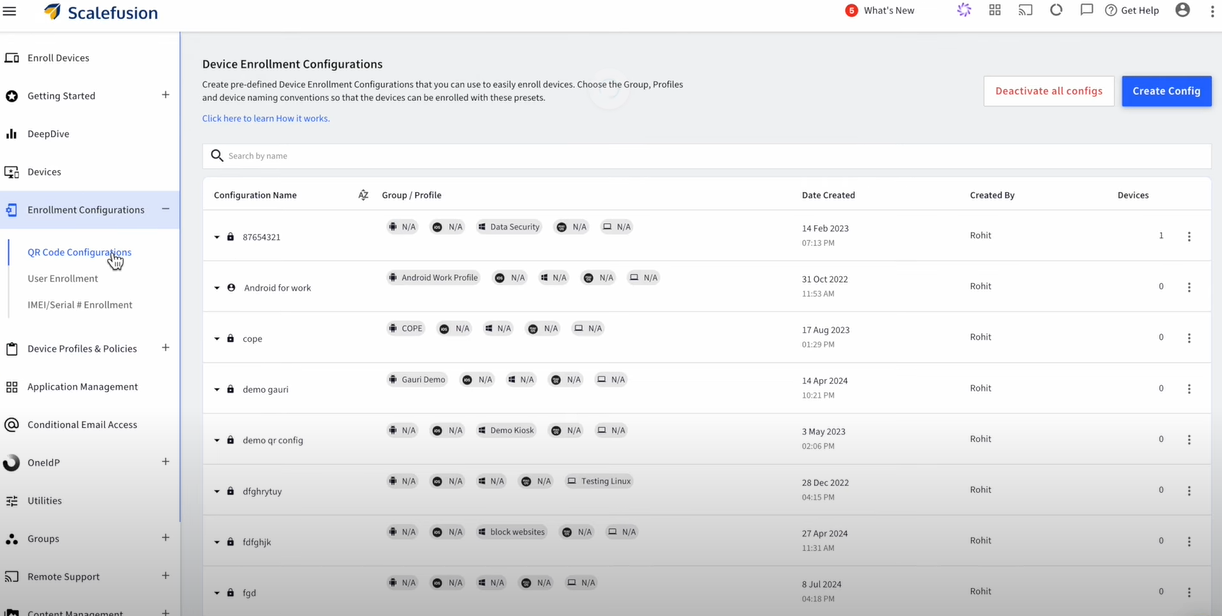
Scalefusion UEM offers a modern and secure way to apply Kiosk Mode to your Windows devices. Follow this step-by-step guide to set up Windows Kiosk Mode: Step 1: Navigate to Device Profiles & Policies > Devices Profiles
 
 
Step 2: Click Create New Profile on the upper right corner of the screen Step 3: Select the Windows tab; Enter a profile name; Click Submit
 
 
Step 4: Now, under Select Apps (on left menu), choose Multi-app Kiosk Mode
 
 
a) Configure policy mode – Select Windows MDM CSP
 
 
b) Add user info – Configure the user info
 
 
c) Select apps – Select the apps to enable on multi-app kiosk mode
 
 
Step 5: Click Create Profile on the upper right corner of the screen to finish
 
 
Step 6: Click Apply to push the multi-app kiosk profile to device groups/user groups/individual devices


Windows Kiosk Mode vs. Windows Assigned Access

Kiosk Mode offered by Scalefusion UEM provides organizations with advanced capabilities, while Windows Assigned Access offers a more basic implementation. Organizations should consider an optimum method of applying Kiosk Mode to their Windows devices that best meets their needs.
Aspect Scalefusion’s Windows kiosk mode Windows Assigned Access
Purpose To provide comprehensive control over Windows devices with customizable settings, multi-app support, and remote management. To restrict a device to a single application for simplicity.
Features Supports multiple apps, remote monitoring, advanced customization, and device management. Limited to single-app mode, with basic restrictions.
Security Enhanced security with advanced policies, remote control, and compliance management. Basic security, limited to local settings and access restrictions.
Ease of Setup Quick and centralized setup through a user-friendly interface with remote deployment options. Simple, but manual and limited to local settings.
Configuration Highly configurable with options for multiple apps, kiosk browser, and custom branding. Minimal configuration, restricted to a single app selection.
Use Cases Suitable for diverse industries like retail, healthcare, education, and enterprises needing multi-app or custom environments. Ideal for basic setups like kiosks displaying one app or a single-purpose device.

Get Scalefusion UEM to configure Windows kiosk mode

Scalefusion UEM’s kiosk Mode for Windows offers a robust solution to the limitations of traditional Windows Assigned Access. It provides enhanced security, advanced customization, and multi-app support, making it ideal for businesses needing versatile, secure, and scalable device management. With centralized control and the ability to configure Windows devices remotely, Scalefusion UEM is perfect for a variety of industries—from retail to education—ensuring that your public-facing and dedicated devices are secure and optimized. Ready to transform your operations with Windows Kiosk Mode? Connect without product experts for a free demo and unlock Scalefusion’s Windows kiosk management features. Begin your 14-day free trial now!

About Version 2 Limited
Version 2 Digital is one of the most dynamic IT companies in Asia. The company distributes a wide range of IT products across various areas including cyber security, cloud, data protection, end points, infrastructures, system monitoring, storage, networking, business productivity and communication products.

Through an extensive network of channels, point of sales, resellers, and partnership companies, Version 2 offers quality products and services which are highly acclaimed in the market. Its customers cover a wide spectrum which include Global 1000 enterprises, regional listed companies, different vertical industries, public utilities, Government, a vast number of successful SMEs, and consumers in various Asian cities.

About Scalefusion
Scalefusion’s company DNA is built on the foundation of providing world-class customer service and making endpoint management simple and effortless for businesses globally. We prioritize the needs and feedback of our customers, making sure that they are at the forefront of all decision-making processes. We are dedicated to providing comprehensive customer support services, and place emphasis on customer-centric thinking throughout the organization.

Understanding Endpoint Performance Monitoring Best Practices

As businesses grow and remote work becomes the norm, it’s clear that having a variety of devices is essential to keep things running smoothly. The tricky part is ensuring these devices are secure and performing at their best.

According to a recent study[1], more than 68% of businesses have faced successful attacks on their devices that compromised their data. This statistic highlights a real challenge. While we need multiple devices to stay efficient, we can’t afford to skimp on security. It’s a balancing act that many organizations are struggling with today.

best practices for endpoint performance monitoring
Best Practices for Endpoint Performance Monitoring

The right solution is endpoint performance monitoring, which can track and monitor all your business devices and keep them up and running at all times. In this blog post, we will explore the concept of endpoint monitoring and endpoint performance monitoring best practices.

What is Endpoint Performance Monitoring?

Endpoint performance monitoring delivers end-to-end visibility into your device inventory or endpoints. IT teams can access a complete overview of business devices running on operating systems such as Android, Windows, iOS, macOS, and Linux. With continuous tracking, analyzing, and managing of endpoints, IT administrators can:

  • Identify potential device security vulnerabilities
  • Maintain compliance with regulations
  • Ensure the overall security of the business device network

Endpoint devices are vulnerable to various security threats, including malware, phishing attacks, and advanced persistent threats. Traditional monitoring systems don’t detect many of these endpoint threats. However, specialized endpoint management software can monitor your endpoints to detect signs of potential vulnerabilities, malicious activity, and unusual changes in system configurations.

Different types of endpoint devices could leave your organization vulnerable:

  • Smartphones
  • PCs
  • Macs
  • Tablets
  • Digital signage
  • mPOS devices
  • Wearables such as smart watches, AR/VR sets, etc
  • Rugged devices like handheld scanners and rugged smartphones
  • IoT devices
  • Printers and peripherals
  • Embedded devices such as medical devices and ATMs

Challenges of Endpoint Performance Monitoring

Monitoring the performance of endpoints, such as mobile devices, is necessary for maintaining optimal functionality and user satisfaction. However, there are several challenges that organizations face when implementing endpoint performance monitoring tools and solutions. Here are five key challenges:

  1. Device Diversity: Modern enterprises use a wide variety of mobile devices, including smartphones, tablets, and rugged devices, running on different operating systems such as iOS, Android, and Windows. This diversity complicates the standardization of performance monitoring protocols. Each OS and device type may require specific endpoint performance monitoring tools and techniques, adding complexity to the management process.
  2. Network Variability: All such endpoints operate across various network environments, including corporate Wi-Fi, public hotspots, and mobile data networks. Network variability can significantly impact device performance and user experience. Endpoint performance monitoring solutions must account for fluctuating network conditions and provide insights into how these variations affect device performance. There should also be a fall-back/security mechanism to manage endpoints when they are offline.
  3. Battery Life Management: One critical aspect of mobile device performance is battery life. Unlike desktop computers, mobile devices rely heavily on battery power, and monitoring battery health and usage patterns is crucial. However, continuously monitoring device performance can be resource-intensive, potentially leading to increased battery drain. 
  4. Real-time Data Analysis: Effective performance monitoring requires real-time data analysis to quickly identify and resolve issues. However, collecting and processing telemetry data from numerous devices can strain network and processing resources. Ensuring that endpoint performance monitoring tools can handle this data influx while providing timely and actionable insights is a complex task.
  5. Scalability: As organizations grow, the number of devices under management can increase exponentially. Scaling the performance monitoring capabilities to accommodate this growth without compromising the quality of insights is a significant challenge. The endpoint performance monitoring solution must be strong enough to handle a large fleet of devices and adaptable enough to integrate new devices and technologies seamlessly.

Traditional Performance Monitoring Systems vs. Endpoint Monitoring Security

Traditional performance monitoring systems focus on assessing the operational efficiency and health of IT infrastructure, while endpoint monitoring security emphasizes protecting devices and data from security threats. Understanding the differences between these two approaches helps organizations effectively manage and secure their IT environments.

AspectTraditional Performance Monitoring SystemsEndpoint Performance Monitoring 
Primary FocusOperational efficiency and system healthDevice and data security

Key Metrics

Network performance
CPU usage, memory usage, threat detection, vulnerability assessment
Data CollectionSystem logs, performance countersSecurity events, behavioral analytics
Response ActionResource optimization, performance tuningIncident response, threat mitigation
IntegrationIT infrastructure management systemsSecurity information and regulatory compliance
Traditional Performance Monitoring Systems vs. Endpoint Monitoring Security

Benefits of Endpoint Performance Monitoring

  1. Efficient Cost Savings: The repercussions of cyberattacks are severe and costly. According to a recent study[2], a data breach costs $4.45 million. In 2022, compromised business emails accounted for $2.7 billion in losses. Endpoint performance monitoring helps businesses defend against sophisticated security threats and reduce costs.
  2. Support Remote Work: Remote work has become a top choice for many people, leading businesses to support both remote and hybrid workforces. With remote workers relying heavily on their endpoint devices for daily tasks, IT teams turn to endpoint performance monitoring to ensure a secure and efficient work environment. This approach is also crucial for frontline and field workers who often work from multiple locations, not just a single office.
  3. Strengthen Security: With endpoint performance monitoring tools, businesses can track and monitor endpoint performance and take a proactive approach to endpoint security. This is done by analyzing real-time device analytics and receiving alerts or notifications when an unusual situation occurs.
  4. Gain Actionable Insights: IT teams can gain actionable insights into the overall health and performance of their devices with endpoint performance monitoring solutions, with their telemetry information providing capabilities. To unlock precise information on the endpoint devices, it’s best to choose an endpoint performance monitoring tool that offers real-time data from a single pane of glass.
  5. Enhanced Employee Satisfaction: It’s very difficult to execute your day-to-day tasks from a device that is lagging or not performing as required. For instance, if a device’s battery is draining continuously, then it’s important to make some needed adjustments to the device. Endpoint performance monitoring tools provide these insights to the IT teams so they can detect and respond to any performance issues. This rapid response improves employee productivity and satisfaction.
  6. Improved customer satisfaction: By ensuring that endpoint devices operate efficiently and securely, businesses can provide a seamless experience for their customers, leading to higher satisfaction and loyalty.

Finding the Right Way: Best Practices for Endpoint Performance Monitoring

Endpoint performance monitoring comes with numerous benefits to strengthen IT teams to effectively track and monitor device performance. Here are some of the best practices businesses can use to execute efficient endpoint monitoring:

  1. Get Automated Alerts with Real-Time Device Analytics: The easiest way to get the most precise information from endpoint devices is to receive real-time data. Live information reflects what is happening on the endpoints, like battery usage, CPU usage, data usage, geofence breaches, and security incidents. These insights come in handy for monitoring and analysis purposes.
  2. Monitor All Sorts of Endpoint Devices: Almost all organizations use devices that run on the Windows or Android operating systems, but businesses still need to monitor their endpoints to maintain excellent device performance. If a small number of devices run on iOS or macOS, they are connected to your device networks and can get compromised if not monitored properly. Monitor and manage all types of devices to ensure the health and safety of business devices.
  3. Track and Monitor Every Device on the Business Network: With remote or hybrid workforces and BYOD policies, it can be difficult to manage each device on your business network. However, businesses need to manage every device. All it takes is one unsecured device to invite all sorts of security threats and malicious attacks.
  4. Unlock the Bigger Picture with a Single Dashboard: With a single unified dashboard, IT teams can see all the critical information from the endpoints. This means no more switching between multiple screens or interfaces and attempting to gather and organize data to analyze. This way, business leaders can access the big picture for improved decision-making and business scalability.
  5. Unified Endpoint Management: Information gathering from various tools can become stressful at times. Save time and boost efficiency with a unified endpoint management solution that offers all the endpoint monitoring and management tools you need in a single solution.

How Scalefusion UEM Enhances Endpoint Performance Monitoring for Businesses

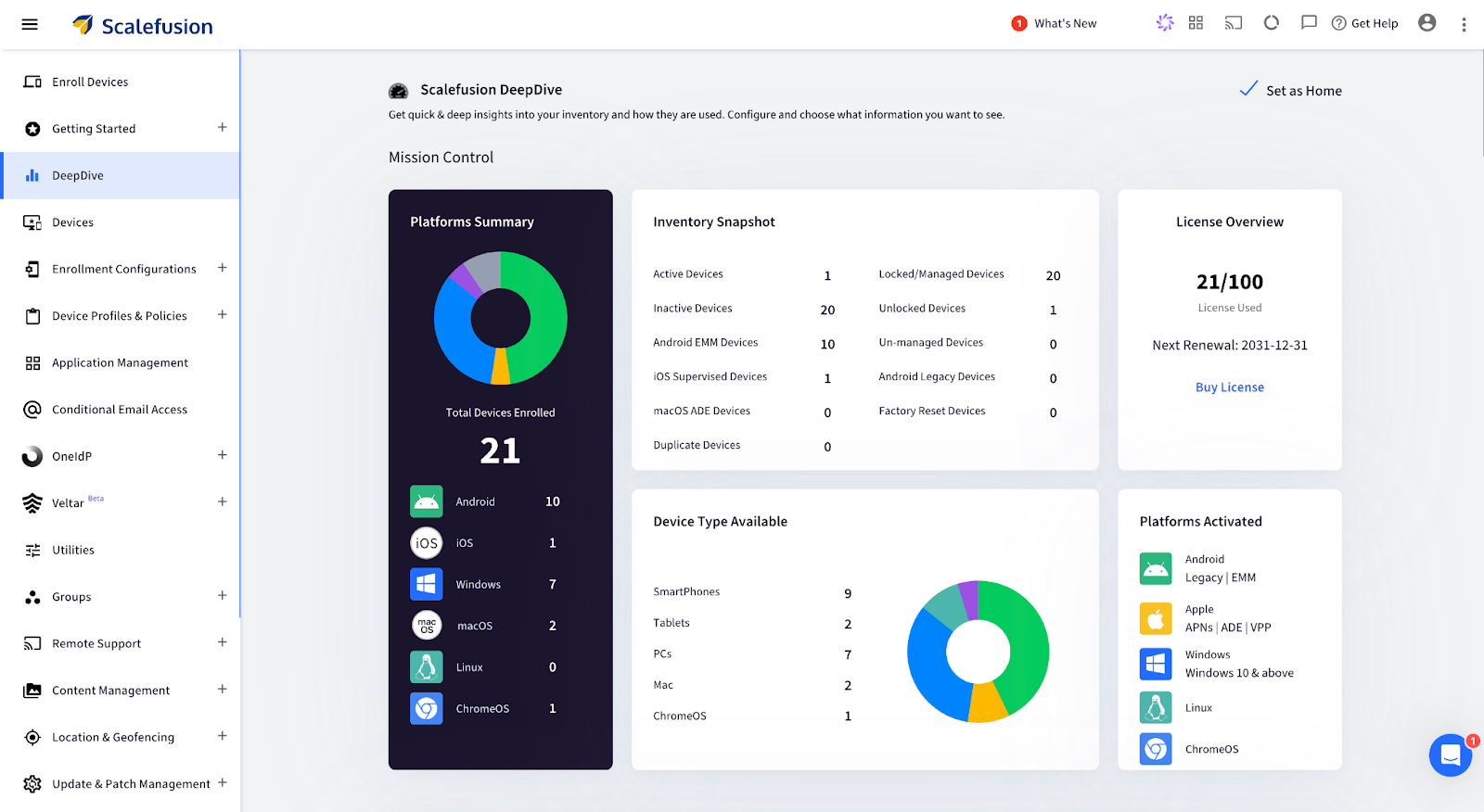
Scalefusion UEM offers businesses far-reaching tools to manage and monitor their diverse fleet of devices effectively. With a clear overview of the total devices enrolled across multiple platforms such as Android, iOS, Windows, macOS, and Linux, businesses can ensure that all endpoints are accounted for and properly managed. The platform’s inventory snapshot provides crucial insights into the status of active, inactive, locked, and managed devices, allowing IT administrators to quickly identify and address performance issues. This real-time visibility is essential for maintaining operational efficiency and ensuring that all devices are performing optimally.

Additionally, Scalefusion UEM’s violation overview, including geofence breaches, security incidents, SIM swaps, and low battery notifications, enhances device security and performance management. By identifying and addressing these issues promptly, businesses can mitigate risks and prevent potential disruptions. Scalefusion also ensures that devices remain secure with features like password policy and file encryption, further contributing to overall performance. These capabilities highlight how Scalefusion UEM helps businesses monitor endpoint performance and enhances security and operational efficiency, ensuring a seamless and productive digital environment.

The Future of Endpoint Management with Scalefusion

As businesses continue to navigate the complexities of managing a diverse array of devices, Scalefusion UEM stands out as a powerful solution that adapts to evolving needs. By providing extensive visibility, security, and performance monitoring, Scalefusion empowers organizations to maintain optimal device functionality and streamline operations. With its intuitive interface and powerful features, Scalefusion is poised to support businesses in their journey towards efficient and secure endpoint management, paving the way for a more connected and productive future.

Get in touch with our experts for a demo. Sign up for a 14-day free trial.

References

  1. Ponemon Institute
  2. Forbes  

About Version 2 Limited
Version 2 Digital is one of the most dynamic IT companies in Asia. The company distributes a wide range of IT products across various areas including cyber security, cloud, data protection, end points, infrastructures, system monitoring, storage, networking, business productivity and communication products.

Through an extensive network of channels, point of sales, resellers, and partnership companies, Version 2 offers quality products and services which are highly acclaimed in the market. Its customers cover a wide spectrum which include Global 1000 enterprises, regional listed companies, different vertical industries, public utilities, Government, a vast number of successful SMEs, and consumers in various Asian cities.
About Scalefusion
Scalefusion’s company DNA is built on the foundation of providing world-class customer service and making endpoint management simple and effortless for businesses globally. We prioritize the needs and feedback of our customers, making sure that they are at the forefront of all decision-making processes. We are dedicated to providing comprehensive customer support services, and place emphasis on customer-centric thinking throughout the organization.

Android Screen Pinning and How to Set It Up

No one likes this situation where you’re handing your phone to a friend to show them a video, but they start scrolling further. What about personal space? To avoid this, you can use Android screen pinning, a feature that locks your device to just one app, ensuring that your friend can only view the specific video and nothing else. It’s a simple and effective solution for personal use, giving you comfort in situations like this.

But now, think about this on a larger scale. Say you’re managing devices for a company. You need those devices to run only specific apps or tools, like a self-service kiosk or point-of-sale system, while keeping everything else out of reach. In this case, Android Screen Pinning might not be enough. With solutions like Scalefusion MDM, you can lock down devices to one or more designated apps with advanced control and security features, making it a perfect solution for business environments.

Android Screen Pinning
What is Android Screen Pinning?

In this blog, we’ll explore how Android screen pinning works and its benefits for personal use, but also why it might fall short in a business setting. We’ll look into how Scalefusion MDM’s Kiosk Mode offers a more comprehensive solution for managing and securing devices in a corporate environment.

What is Android Screen Pinning?

Android screen pinning is a handy feature that lets you lock your device to a single app. Think of it like putting your phone in “museum mode” where you can only interact with one app, and everything else is off-limits. It’s perfect for situations where you want to show someone just one thing on your device without them accidentally navigating away or accessing other apps.

When you activate screen pinning, the app you choose stays on the screen, and the user can’t swipe away to other apps or settings. If you want to switch apps or exit screen pinning, you’ll need to use a PIN, pattern, or password. This feature is available on devices running Android 5.0 Lollipop and later, making it a simple way to ensure that a device stays focused on a specific task or app.

Benefits of Screen Pinning on Android Devices

Here are some key benefits of using Screen Pinning on Android devices:

  • Focused Usage: Screen Pinning allows you to lock your device to a single app, ensuring users stay within the intended application without accidentally navigating away. This is especially useful for presentations or interactive kiosks.
  • Simple Setup: The use of Screen Pinning on Android devices is straightforward and can be activated easily through the device’s settings, making it accessible for users of all levels.
  • Enhanced Privacy: By locking the device to one app, Screen Pinning helps prevent unauthorized access to other apps and personal information, enhancing user privacy.
  • Versatile Application: Ideal for scenarios like public kiosks or dedicated information terminals where restricting device access to a single app is essential.
  • Cost-Free Solution: Screen Pinning is a built-in feature available at no additional cost on Android devices running version 5.0 Lollipop and later.

How to Set Up Screen Pinning on Android Devices

Turn on Screen Pinning

To enable Screen Pinning on an Android device, follow these steps:

  1. Access Settings: Open the Settings app on your device.
  2. Navigate to Security: Scroll down and tap on Security or Security & Location, depending on your device.
  3. Advanced Settings: Under Advanced, look for Screen Pinning.
  4. Enable Screen Pinning: Toggle the switch to turn on Screen Pinning. If you want added security, ensure that you enable the option to require a PIN, pattern, or password before unpinning.

How to Pin an App on Android Devices

Pinning an app to the screen varies slightly depending on your device’s Android version:

For devices running Android 8.1 and below:

  1. Open the App: Launch the app you want to pin.
  2. Tap Overview: Tap the Overview button (the square button at the bottom of the screen).
  3. Pin the App: Swipe up to reveal the Pin icon at the bottom right corner of the app’s window. Tap it to pin the app.

For devices running Android 9.0 and above:

  1. Open the App Overview: Swipe up from the bottom of the screen to the middle to open the App Overview.
  2. Select the App: Locate the app you want to pin and tap on its icon at the top of the window.
  3. Pin the App: Tap Pin to lock the app to the screen.

How to Unpin Apps on Android Devices

Unpinning the screen depends on your device’s system navigation settings:

Gesture Navigation:

  • Swipe up and hold from the bottom of the screen until the app is unpinned.

2-Button Navigation:

  • Touch and hold the Back and Home buttons simultaneously.

3-Button Navigation:

  • Touch and hold the Back and Overview buttons at the same time.

If a PIN, pattern, or password is set, you will be prompted to enter it before the screen is unpinned, ensuring an additional layer of security.

Why Screen Pinning Falls Short for Business Use

While screen pinning on Android devices is a convenient feature for individual users, it presents several challenges when applied in a business or organizational context. Below are the limitations or disadvantages of using Android screen pinning:

  • Lack of Centralized Control

Screen Pinning requires manual activation on each device, which becomes impractical when managing multiple devices across an organization. There’s no centralized management or ability to enforce pinning settings remotely, making it difficult for IT admins to maintain consistency.

  • Security Vulnerabilities

Although Screen Pinning restricts access to a single app, it is not foolproof. Users can potentially bypass the pinning with a few steps, especially if a PIN or password is not set, leading to unauthorized access to other apps and sensitive data.

  • Limited Customization and Flexibility

Screen Pinning does not offer the customization needed for varied business use cases. For example, it cannot lock devices into multiple apps or allow for the customization of the device interface, which is essential for creating a seamless user experience in environments like retail or customer service.

  • Scalability Challenges

As organizations grow and their device fleets expand, the manual nature of Screen Pinning becomes a significant bottleneck. Scaling up requires a solution that can handle mass deployment and management, which Screen Pinning alone cannot provide.

  • No Remote Management

In a business setting, remote management of devices is crucial for troubleshooting, updates, and maintaining security. Screen Pinning lacks the capability for remote control or monitoring, making it less suitable for organizations that need to manage devices across various locations.

Why Choose Scalefusion MDM Over Android Screen Pinning?

Scalefusion MDM offers a more robust solution with its Kiosk Mode, along with several other features that make it the superior choice for businesses.

  • Scalefusion Kiosk Mode

Scalefusion MDM’s Kiosk Mode is a powerful alternative to Android screen pinning, providing better functionality and control over devices. Unlike basic screen pinning, kiosk mode allows businesses to lock down devices to a single app or a set of apps, preventing unauthorized access to other features or settings. This ensures that devices are used solely for their intended purpose, whether it’s for customer engagement, employee tasks, or digital signage.

  • Custom Branding

Scalefusion offers branding customization features, allowing businesses to align their device displays with their corporate identity. In addition to screen pinning, enterprises can configure elements such as home screen and lock screen wallpapers, logos, fonts and font sizes, color schemes, and even user interface settings, including notifications. This ensures a seamless and cohesive visual experience across all devices, reflecting the company’s branding.

  • Bulk Provisioning and Automation

Managing a large number of devices manually can be time-consuming and prone to errors. Scalefusion MDM simplifies this process with its bulk provisioning and automation capabilities. You can provision multiple devices at once, apply consistent configurations, and automate routine tasks, significantly reducing manual effort and ensuring that all devices are set up correctly and efficiently.

  • Remote Management

Scalefusion MDM offers comprehensive remote management capabilities, allowing IT admins to troubleshoot and manage devices without needing physical access. Whether it’s pushing updates, changing settings, or locking down a device in case of loss or theft, Scalefusion’s remote management tools provide the flexibility and control that businesses need to maintain their device fleet securely and efficiently.

  • Security Enhancements

Security is a critical concern for businesses, and Scalefusion MDM offers a suite of advanced security features that go beyond what screen pinning can provide. Features such as Lost Mode, remote wipe, and custom settings apps ensure that devices remain secure, even in the event of loss or unauthorized access. These additional layers of security help protect sensitive business data and maintain compliance with industry regulations.

  • Cross-Platform Support

Scalefusion MDM provides cross-platform support. While Android screen pinning is limited to Android devices, Scalefusion MDM allows you to manage Android, iOS, Windows, macOS, ChromeOS, and Linux devices all from a single dashboard. This unified solution is particularly beneficial for businesses that operate with a diverse range of devices, ensuring consistency and control across the board.

Upgrade from Screen Pinning to Scalable Kiosk Mode with Scalefusion 

Scalefusion MDM not only addresses the limitations of Android screen pinning but also offers a comprehensive, scalable solution for managing devices in a business environment.

If you’re looking for a more secure solution than Android Screen Pinning, explore Scalefusion MDM. With advanced features like Kiosk Mode, cross-platform support, and enhanced security, Scalefusion MDM is designed to meet the needs of modern businesses. 

Contact our experts for more information and start your 14-day free trial today!

About Version 2 Limited
Version 2 Digital is one of the most dynamic IT companies in Asia. The company distributes a wide range of IT products across various areas including cyber security, cloud, data protection, end points, infrastructures, system monitoring, storage, networking, business productivity and communication products.

Through an extensive network of channels, point of sales, resellers, and partnership companies, Version 2 offers quality products and services which are highly acclaimed in the market. Its customers cover a wide spectrum which include Global 1000 enterprises, regional listed companies, different vertical industries, public utilities, Government, a vast number of successful SMEs, and consumers in various Asian cities.
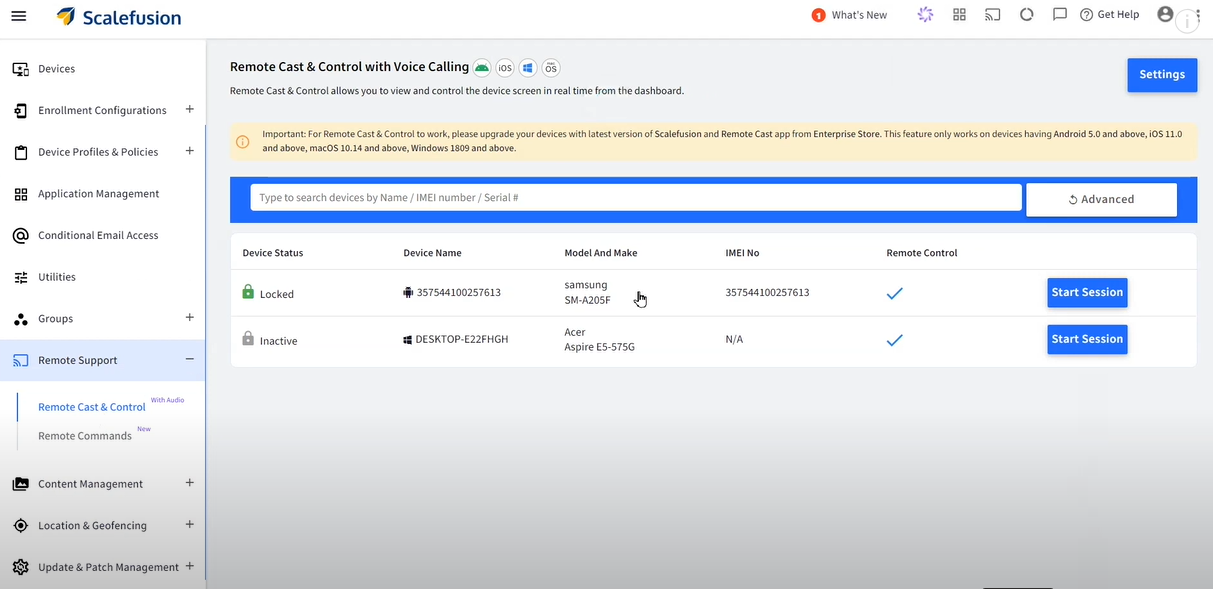
About Scalefusion
Scalefusion’s company DNA is built on the foundation of providing world-class customer service and making endpoint management simple and effortless for businesses globally. We prioritize the needs and feedback of our customers, making sure that they are at the forefront of all decision-making processes. We are dedicated to providing comprehensive customer support services, and place emphasis on customer-centric thinking throughout the organization.

How UEM Boosts IAM: A First-class Strategy for Operational Efficiency

ProMobi Technologies today announced that Scalefusion- its leading unified endpoint management solution (UEM), has now launched support for ChromeOS device management. This addition reinforces Scalefusion’s commitment to offering a versatile multi-OS management platform that caters to the diverse needs of modern businesses. 

With the integration of ChromeOS, Scalefusion enables IT administrators to streamline the management of ChromeOS devices alongside Windows, macOS, Android, and Linux, simplifying the complexities of multi-OS environments.

ChromeOS has seen significant adoption across industries, from education to enterprise, thanks to its balance of affordability, speed, and security. Recognizing this growing trend, Scalefusion’s new ChromeOS device management provides organizations with the ability to provision, secure, and monitor ChromeOS devices seamlessly through the same intuitive platform used for their existing device ecosystems.

Scalefusion’s ChromeOS management empowers businesses to streamline device management by integrating ChromeOS into their existing device strategy. With Scalefusion’s unified platform, IT administrators can boost productivity by providing a consistent, unified experience for users across all platforms. Whether organizations are deploying Chromebooks in educational settings or managing ChromeOS devices for remote workforces, Scalefusion makes it simple to provision, secure, and monitor these devices—all from a single dashboard. With the addition of ChromeFlex, businesses can repurpose existing PCs and Macs by converting them to ChromeOS devices, further extending the life of their hardware while maintaining seamless management through Scalefusion’s unified platform.

Sriram Kakarala, Chief Product Officer at Scalefusion, highlighted the importance of this new addition: “With the rise of ChromeOS in diverse sectors, we saw a clear opportunity to enhance the Scalefusion platform. By adding ChromeOS support, we are delivering on our promise to simplify device management for our customers, regardless of which operating systems they choose to deploy.”

Scalefusion’s integration aims to provide organizations with a straightforward approach to managing their multi-OS device ecosystems. Request a free trial of this release by setting up a demo of Scalefusion for ChromeOS here.

About Scalefusion

ProMobi Technologies provides a leading Unified Endpoint Management solution under the brand Scalefusion. Scalefusion UEM allows organizations to secure and manage endpoints, including smartphones, tablets, laptops, rugged devices, POS and digital signage, and apps and content. It supports the management of Android, iOS, macOS, Windows, Linux, and ChromeOS devices and ensures streamlined device management operations with Scalefusion Remote Troubleshooting.

More than 8000 companies worldwide are unlocking their true potential using Scalefusion, which is used across various industries, such as Transportation & Logistics, Retail, Education, Healthcare, Manufacturing, Construction & Real Estate, Hospitality, Software & Telecom, Financial Services, and others.

About Version 2 Limited
Version 2 Digital is one of the most dynamic IT companies in Asia. The company distributes a wide range of IT products across various areas including cyber security, cloud, data protection, end points, infrastructures, system monitoring, storage, networking, business productivity and communication products.

Through an extensive network of channels, point of sales, resellers, and partnership companies, Version 2 offers quality products and services which are highly acclaimed in the market. Its customers cover a wide spectrum which include Global 1000 enterprises, regional listed companies, different vertical industries, public utilities, Government, a vast number of successful SMEs, and consumers in various Asian cities.
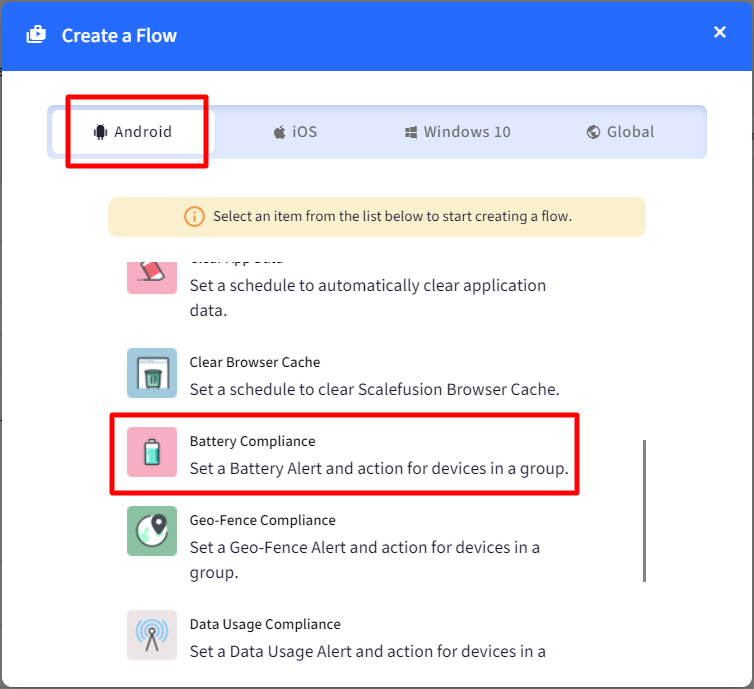
About Scalefusion
Scalefusion’s company DNA is built on the foundation of providing world-class customer service and making endpoint management simple and effortless for businesses globally. We prioritize the needs and feedback of our customers, making sure that they are at the forefront of all decision-making processes. We are dedicated to providing comprehensive customer support services, and place emphasis on customer-centric thinking throughout the organization.

MDM for MSPs: A Strategic Approach to Managing Client Devices

Businesses across various industries face a common challenge: managing their IT infrastructure effectively while focusing on core operations.

This challenge is particularly pronounced in the healthcare, finance, education, and retail industries, where reliable IT support can be scarce and budget-tight and work environments increasingly dispersed.

MDM for MSP
Mobile Device Management for MSPs

That’s where Managed Service Providers, or MSPs, come into the picture. They provide various IT and IT management services, with Mobile Device Management (MDM) being a key offering among them. MDM for MSPs isn’t just about keeping devices secure and up-to-date; it’s about empowering businesses to walk through compliance requirements, and data security confidently.

For example, consider a healthcare provider managing patient data across multiple devices, a financial institution safeguarding client information with security measures, or a retail operation maintaining smooth transactions and customer interactions. All of this is possible thanks to MSPs’ strategic approach to managing client devices. 

In this blog, we will discuss the pivotal role of MDM service providers for MSPs. We will explore how MSPs leverage MDM solutions to streamline operations, improve security protocols, and support businesses in achieving their goals without the burden of IT complexities.

Common Challenges in Device Management: Need for MSP-driven MDM

1. Device Diversity and Compatibility Issues

MSPs often deal with a wide range of client devices across different operating systems, versions, and configurations. Seamlessly integrating these diverse devices into a unified management framework can be challenging and time-consuming.

2. Security Threats and Data Breaches

With the proliferation of cyber threats, MSPs must safeguard client devices from malware, phishing attacks, and other security vulnerabilities. Data breaches can have severe consequences, including legal liabilities and damage to client trust, making security measures a top priority.

3. Manual Device Management Complexities

Traditional, manual methods of managing devices are inefficient and prone to errors. MSPs struggle with the time and effort required to manually configure, update, and troubleshoot devices across multiple clients and locations.

4. Inefficient Troubleshooting and Support Processes

Resolving device issues remotely or on-site can be challenging due to limited visibility into device performance and user behavior. MSPs need streamlined processes and tools for proactive monitoring, quick diagnostics, and responsive support to minimize downtime and client disruption.

Strategic Approach to Managing Client Devices

1. Needs Assessment and Client Consultation

To effectively support clients, MSPs should begin by conducting thorough assessments of their IT environments and consulting closely with businesses to identify precise needs and pain points. This process involves analyzing existing device setups, evaluating security requirements, and understanding industry-specific compliance mandates. 

With the help of a suited MDM solution, MSPs ensure their services align perfectly with client goals, enhancing operational effectiveness and security while addressing the challenges unique to each organization. This personalized approach increases client satisfaction and lays the groundwork for long-term, strategic IT management partnerships.

2. Selection of the Right MDM Solution

When selecting the ideal MDM solution for clients, MSPs should undertake a rigorous evaluation process. This involves comparing various MDM options based on their features, scalability, security protocols, and compatibility with client devices. MSPs should consider whether a cloud-based or on-premise MDM solution best suits the client’s preferences and existing infrastructure. 

Also, it is important to emphasize choosing solutions equipped with reporting, analytics tools, and remote management capabilities. This strategic selection ensures the chosen MDM solution meets immediate needs and supports long-term scalability.

3. Customization and Configuration

MSPs must focus on customization and configuration when implementing MDM solutions. This approach helps ensure alignment with client-specific policies, compliance requirements, and security protocols. By meticulously configuring device policies, user roles, and access controls, MSPs can guarantee secure and efficient device management.

Implementing automated workflows for tasks such as device provisioning, updates, and compliance checks is essential to streamlining operations and enhancing overall IT management effectiveness for clients. This strategic approach strengthens security measures and cultivates a digital environment that meets each client’s precise operational needs.

4. Device Enrollment and Provisioning

For effective device management, MSPs should implement streamlined enrollment processes to quickly onboard client devices, including those in BYOD (Bring Your Own Device) scenarios. 

Utilizing zero-touch provisioning and automated configuration, which includes OOB (Out-of-the-box)  setups, is essential to minimize manual effort and accelerate deployment times. It is important to ensure all devices are properly enrolled and configured before being handed over to end users. 

5. Security Management

MSPs need to deploy comprehensive security measures, including encryption, remote wipe capabilities, and secure access controls, to protect client devices. Regular updates to security policies are important to address emerging threats. 

Real-time device security monitoring and swift responses to potential breaches or vulnerabilities are vital for continuous protection and client trust. This proactive approach to security management helps safeguard sensitive data and strengthen the overall IT infrastructure.

6. Continuous Monitoring and Support

MSPs need to establish continuous monitoring practices to track device performance, usage patterns, and compliance. Providing proactive support through remote troubleshooting, automated alerts, and quick resolution of issues is essential for maintaining optimal device functionality. 

Maintaining open communication channels with clients for ongoing feedback and support ensures their needs are met promptly and effectively, developing a strong, collaborative relationship.

7. Reporting and Analytics

MSPs must utilize the reporting and analytics features of an MDM solution to generate detailed insights into device usage, compliance, and performance. Sharing regular reports with clients demonstrates the value of MDM and highlights areas for improvement. 

Leveraging analytics to identify trends helps optimize device management strategies and overall service delivery. This data-driven approach ensures MSPs can continuously improve their services and better meet their clients’ needs.

8. Strategic Partnerships and Collaboration

MSPs need to form strategic partnerships with leading MDM providers to access the latest technologies and support. Collaborating with clients for solutions that align with their long-term goals and objectives ensures the services provided are relevant and effective. 

By developing a collaborative relationship, MSPs can position themselves as trusted advisors in device management, enhancing client trust and satisfaction. This approach improves service quality and strengthens the overall client-MSP partnership.

MDM: Essential for MSP Success

Corporate mobile device management is crucial for the security, efficiency, and compliance of client devices. MDM empowers MSPs to address challenges such as device diversity, security threats, and manual management complexities. By adopting a strategic approach to MDM, MSPs can deliver solutions that can improve client operations and satisfaction.

MSPs should explore comprehensive MDM solutions like Scalefusion to stay ahead of evolving IT demands. Scalefusion offers advanced features such as remote troubleshooting, automated updates, and robust security protocols, enabling MSPs to efficiently manage diverse client device environments.

Schedule a demo with our experts and start a 14-day free trial to experience the full benefits firsthand!

About Version 2 Limited
Version 2 Digital is one of the most dynamic IT companies in Asia. The company distributes a wide range of IT products across various areas including cyber security, cloud, data protection, end points, infrastructures, system monitoring, storage, networking, business productivity and communication products.

Through an extensive network of channels, point of sales, resellers, and partnership companies, Version 2 offers quality products and services which are highly acclaimed in the market. Its customers cover a wide spectrum which include Global 1000 enterprises, regional listed companies, different vertical industries, public utilities, Government, a vast number of successful SMEs, and consumers in various Asian cities.
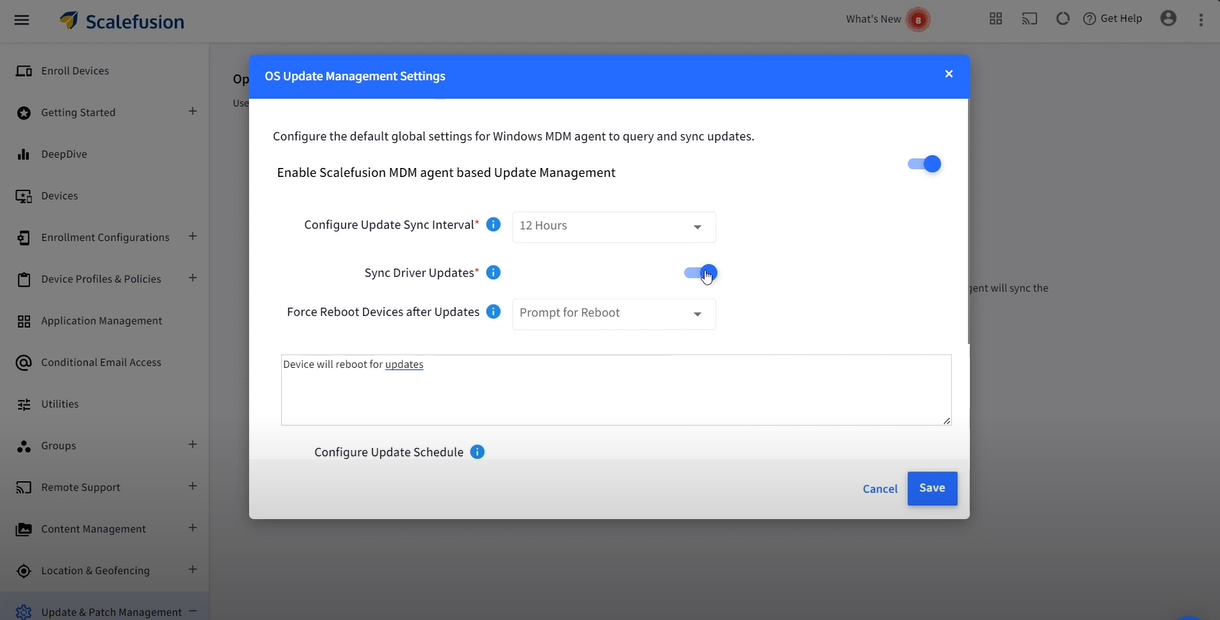
About Scalefusion
Scalefusion’s company DNA is built on the foundation of providing world-class customer service and making endpoint management simple and effortless for businesses globally. We prioritize the needs and feedback of our customers, making sure that they are at the forefront of all decision-making processes. We are dedicated to providing comprehensive customer support services, and place emphasis on customer-centric thinking throughout the organization.